Create A+ content images for desktop and mobile
Choose an Amazon product, a layout, and a visual look. Picmato builds your desktop A+ page first, lets you review and refine its sections, then generates a separate mobile version. Download the module images for manual upload in Seller Central. Available on Starter, Pro, and Max; check your Amazon Premium A+ access before generating.
Why it matters
How a+ content works
Your product story, built one section at a time.
Choose your product and layout
Open A+ Content for an Amazon product. Pick a layout and look, review its single and double sections, and check the quoted credit cost.
Build and review desktop
Generate the desktop page. Inspect product details and wording, then edit or redraw sections that need attention.
Generate and check mobile
Create the mobile version after desktop is settled. Review readability and keep both surfaces aligned when you make changes.
Export and upload manually
Download the module files, inspect image keywords, and upload to compatible Premium image modules in Seller Central. Preview and submit through Amazon.
How do sections become Amazon image modules?#
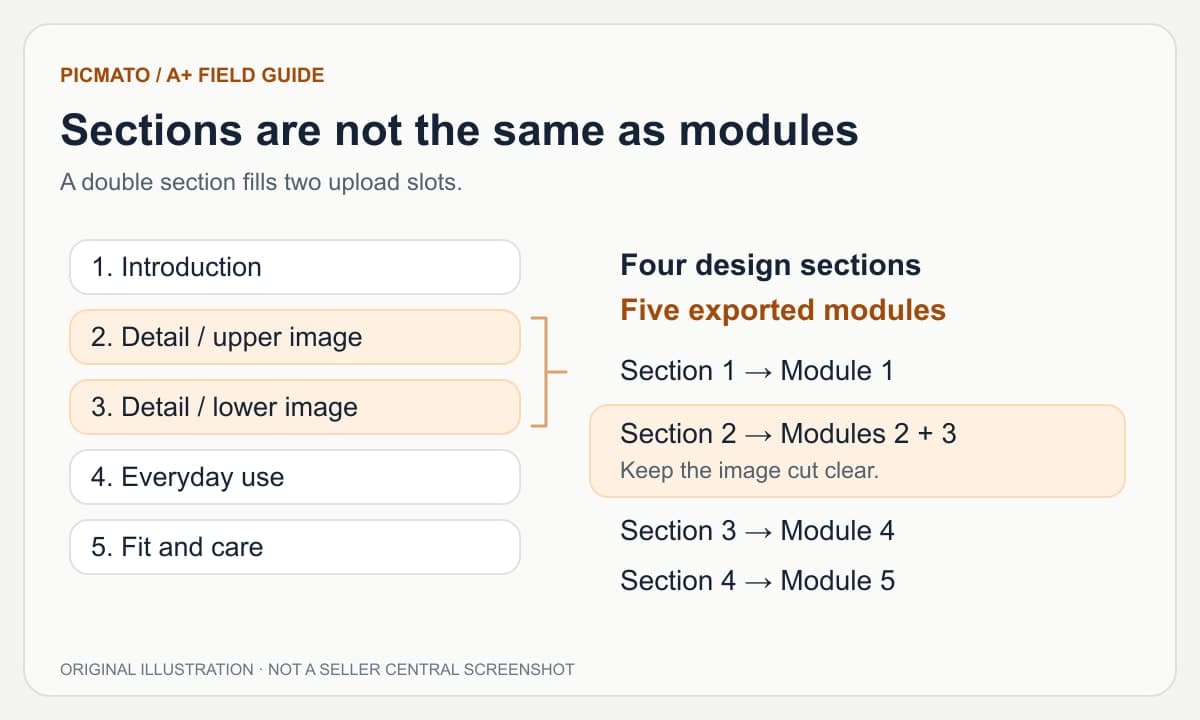
A single design section fills one exported module; a double fills two. Picmato offers five- and seven-module layouts, so the number of design sections can differ from the number of exported files. Review both in setup before generating.
The current exports are 1464 x 600 pixels per desktop module and 600 x 450 per mobile module. Match these files to the requirements of the actual Amazon module you choose. Each image should work on its own, with essential words and product details away from module boundaries.
What should you check before generating?#
A+ Content generation is available on Starter, Pro, and Max. Free listing-image credits do not unlock A+ generation. Check the app's quote for each action: desktop generation, mobile generation, and later redraws are separate.
Confirm Premium A+ access for your intended product in Amazon's A+ Content Manager. A Picmato plan provides image creation tools; it does not change your Amazon eligibility. Prepare accurate photos, product facts, and claims you can substantiate before starting.
References: Amazon: A+ Content overview and access
What do you still do in Seller Central?#
Upload the exported images to compatible Premium image modules, enter accurate image descriptions, apply the content to the right ASINs, and inspect both device previews. Amazon handles moderation and publishing after you submit.
This workflow creates image assets. Amazon's native videos, interactive hotspots, and shoppable comparison tables are separate module types. File-property checks in the export panel do not validate product claims or guarantee approval.
References: Amazon: A+ design, preview, and submission guide
Authoritative Guides & Market Playbooks
Practical planning, creation, and mobile-review guides with links to Amazon documentation.
How to Create Amazon A+ Content with Picmato
A practical walkthrough from an Amazon product and a module plan to reviewed desktop and mobile images, with a checklist for Seller Central upload.
How to Plan Amazon A+ Content Modules
Give every module a job. Build a facts-led A+ brief, map single and double sections, and avoid repeating the same pitch across the page.
Amazon A+ Content Design for Mobile
A wide banner rarely becomes a strong mobile composition by shrinking. Learn what to rearrange, what to simplify, and how to check the final Amazon preview.
Explore more features
A+ Content: questions answered
Which Picmato plans include A+ Content?
A+ Content generation is included on Starter, Pro, and Max, and is not available on Free. Review the credit cost shown in setup before generating. Mobile generation and later redraws are separate actions with their own quotes. Your Picmato plan does not grant Amazon Premium A+ access; check that separately in Seller Central.
Can I use A+ Content for Walmart or Flipkart products?
This A+ workflow is for Amazon products. The product picker and server restrict A+ projects to Amazon. Picmato's listing-image tools support other marketplaces separately, but their rich-media requirements and upload tools differ. Do not assume that an Amazon A+ module file is a ready-to-upload equivalent for another marketplace.
Does Picmato publish A+ content to Amazon?
You export the images and upload them manually in Seller Central. The export panel provides module files in upload order, a full-page review image, and image keywords to inspect and copy. Choose compatible modules, verify the facts and previews, assign the intended ASINs, and submit through Amazon. Approval and publishing remain Amazon's processes.
Can I change one section without starting over?
The workspace lets you inspect a section, edit its text, and request a redraw. Check the quoted credit cost before confirming. Review the resulting image for accurate product details and rendered wording. If the desktop changes after mobile exists, check whether mobile is out of date and bring it into agreement before export.
Ready to create your A+ content images?
Build desktop and mobile image modules, then upload them manually to Seller Central. A+ generation requires Starter, Pro, or Max.