How to Create Amazon A+ Content with Picmato
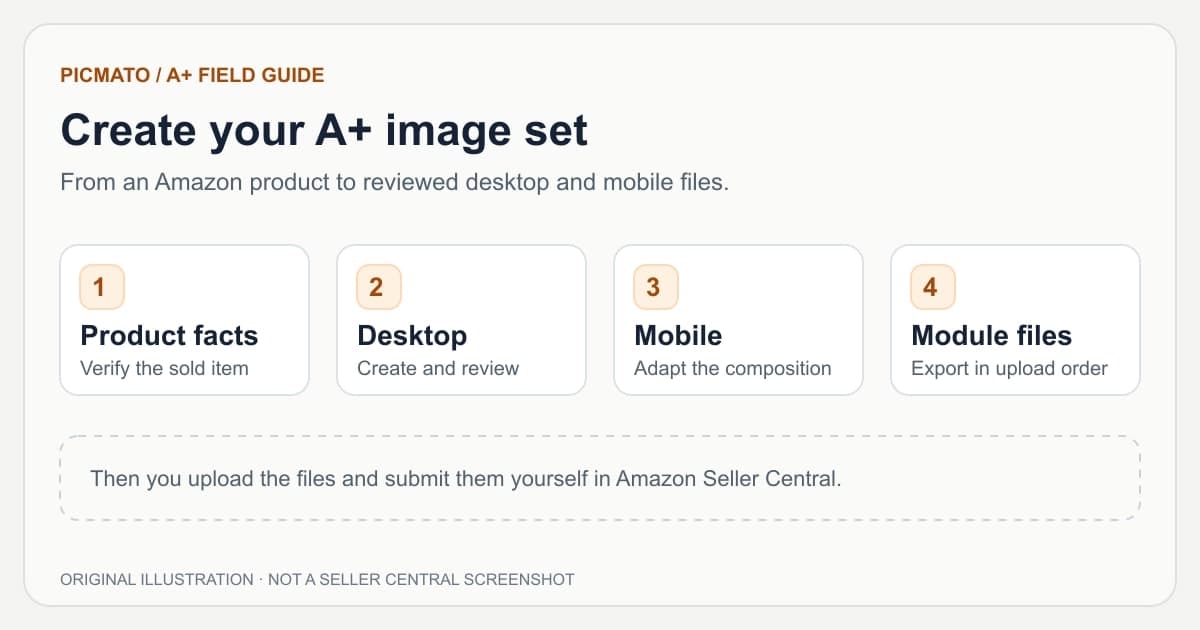
Original workflow illustration. The steps represent a production process, not a screenshot of Seller Central.
To create Amazon A+ content with Picmato, open an Amazon product, choose a layout and visual look, and generate the desktop page first. Review the images and text before generating the mobile page. Export the module files, then upload and submit them yourself in Amazon Seller Central.
This workflow creates Premium-format image assets. It does not give your Amazon account Premium A+ access or publish content for you. Picmato A+ generation requires Starter, Pro, or Max. The instructions below separate creative production from Amazon's own content approval process.
What should you have ready before creating A+ content?#
Start with an Amazon product in your account, accurate product photos, and a short facts sheet. Include the sold quantity, materials, dimensions, compatibility, package contents, and any claims you can substantiate. An attractive layout cannot fix an incorrect product brief.
Check A+ Content Manager in Seller Central before you spend credits. Amazon offers Basic, Premium, and Brand Story content, but the options available to your account and ASIN matter. The public A+ overview describes access broadly; your account is the place to confirm whether you can use the Premium image modules this workflow targets.
- Confirm the exact product and variation you are depicting.
- Check your Amazon Premium A+ access and intended image module.
- Prepare brand assets and approved product facts.
- Budget for desktop generation and a separate mobile generation.
References: Amazon: A+ Content overview and access
How do you choose a layout and look?#
Open A+ Content for your Amazon product, or select it from the A+ Content project page. Choose a ready-made layout or a custom layout, then review its section heights, transitions, and visual look. Picmato offers five- and seven-module layouts. Use the setup cost shown in the app before starting generation.
A section is a design unit; a module is an exported image slot. One double-height section occupies two module slots and exports as two files. For example, one single, one double, and two more single sections fill five modules. Do not confuse five modules with five separately generated sections when checking the quoted cost.
| Choice | What to check |
|---|---|
| Layout | Does each section answer a different shopper question? |
| Module count | Will the five or seven exported modules fit the intended Premium page? |
| Transitions | Can each module stand on its own when Amazon inserts spacing? |
| Look | Does it suit the product and stay consistent with your brand? |
| Generation cost | Review the app's quote for the chosen section layout. |
What should you review on the desktop page?#
Generate the desktop page, then inspect every section at a readable scale. Compare the product shape, packaging, color, accessories, and quantity with your reference photos. Read every headline and label. A plausible-looking number or certification is still wrong if your product facts do not support it.
Use the section editor when text needs correcting, and redraw a section when its image or composition needs changing. Review the app's credit quote before confirming a redraw. Text instructions guide a new render; always inspect the resulting pixels rather than assuming a saved wording change has rendered perfectly.
- Check that the pictured item is the actual variant being sold.
- Remove unsupported claims, invented awards, and decorative certification marks.
- Keep important words, faces, and product details away from module cuts.
- Check spelling, units, and text contrast on the finished image.
When should you generate the mobile version?#
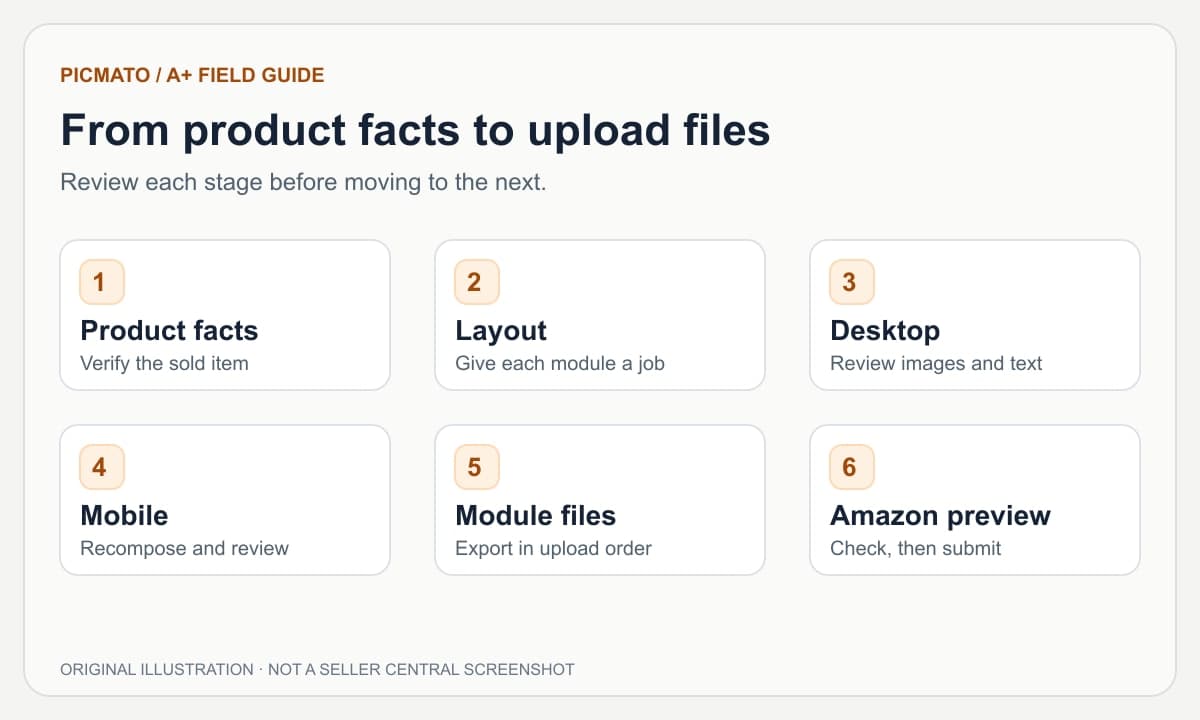
Generate mobile after the desktop message and product details are settled. Picmato draws a separate mobile page from the desktop sections. Review it independently: a wide side-by-side composition usually needs a different arrangement on a narrower image.
If you redraw desktop sections after generating mobile, check whether the mobile page is marked out of date. Bring both versions back into agreement before exporting. Amazon's design guide recommends using the desktop and mobile previews before submission; a good preview in your creative tool is only the first check.
References: Amazon: How to create A+ Content, with design tips and examples
Which files should you download for Seller Central?#
Open the export panel for each finished surface. Download the module ZIP and confirm that every expected file is present in upload order. The full-page image is useful for a team review or archive; it is not a replacement for the individual module uploads.
Picmato exports desktop bands at 1464 x 600 pixels and mobile bands at 600 x 450 pixels. These are this tool's output sizes, not universal dimensions for every Amazon module. Compare them with the image fields in the Premium module you selected. Review the provided image keywords and adapt each description to the image it accompanies, especially when a section spans two files.
- Download desktop and mobile exports separately.
- Open the ZIP and check for missing or duplicate module files.
- Check image dimensions, format, and file size against the chosen Amazon fields.
- Write descriptive alt text for each uploaded image.
References: Amazon News: Improve your listings with A+ Content best practices
How do you upload and submit the finished content?#
Open A+ Content Manager in Seller Central and create or edit the appropriate Premium content project. Add the compatible image modules, place the desktop and mobile assets in their matching fields where available, and enter the relevant image descriptions. Check the requirements displayed by that module rather than forcing an asset into an unrelated Basic slot.
Apply the content to the intended ASINs, review both device previews, and submit through Amazon. Review and publishing are separate states. If the content does not appear, inspect the project and ASIN statuses before recreating the artwork. Amazon's staff troubleshooting guide covers brand mapping, language, and vendor contributions as well as review delays.
References: Amazon: How to create A+ Content, with design tips and examples; Amazon staff: A+ Content not showing, common reasons and troubleshooting
What belongs on the final upload checklist?#
Run this checklist against the exported files and Seller Central preview, not just the original plan. Ask a teammate to read the page without your brief: can they tell what is included, how it works, and whether it fits their needs?
- The ASIN and product variant match the artwork.
- Desktop and mobile contain the same approved facts.
- Text is readable at the intended display size.
- No essential detail is split across adjacent modules.
- Module files and alt text match the chosen upload fields.
- Claims and images have been reviewed against Amazon's current guidance.
- The right ASINs and language are selected before submission.
Amazon guidance is linked beside relevant sections and in the references below. Practical design advice and illustrative examples are identified separately. Seller Central requirements and account access can change; review your current module editor before uploading.
Edited by Picmato.
Content reviewed: Nov 15, 2026
Frequently asked questions
Can I create A+ content on Picmato's free plan?
A+ Content generation requires Starter, Pro, or Max. The free account's listing-image credits do not unlock this feature. Check the current plans and the generation quote shown in the A+ setup screen. Desktop creation, mobile creation, and later redraws are separate actions, so review the cost before confirming each one.
Does Picmato upload A+ content to Amazon?
You download the module images and upload them manually in Seller Central. Picmato also offers a full-page image for review and image keywords to inspect and copy. You remain responsible for choosing the correct Amazon module, applying the content to the intended ASINs, checking both previews, and submitting the project for review.
Can I use these files in Basic A+ content?
This workflow targets Premium-format image modules. Picmato's desktop and mobile exports are not a universal match for Basic A+ slots. Check your Amazon access and the image requirements of the actual module before generating. If you only have Basic A+, prepare assets for those fields instead of assuming a Premium export can be uploaded unchanged.
Sources & Reference Documentation
Recommended Playbooks & Market Guides
Platform policies, image compliance documentation, and conversion frameworks.
Amazon A+ Content and Brand Story: A Practical Guide
Start here for the differences between Basic A+, Premium A+, and Brand Story, then follow the creation, planning, sizing, mobile, and troubleshooting guides.
How to Plan Amazon A+ Content Modules
Give every module a job. Build a facts-led A+ brief, map single and double sections, and avoid repeating the same pitch across the page.
Amazon A+ Content Design for Mobile
A wide banner rarely becomes a strong mobile composition by shrinking. Learn what to rearrange, what to simplify, and how to check the final Amazon preview.