Amazon A+ Content Rejected or Not Showing?
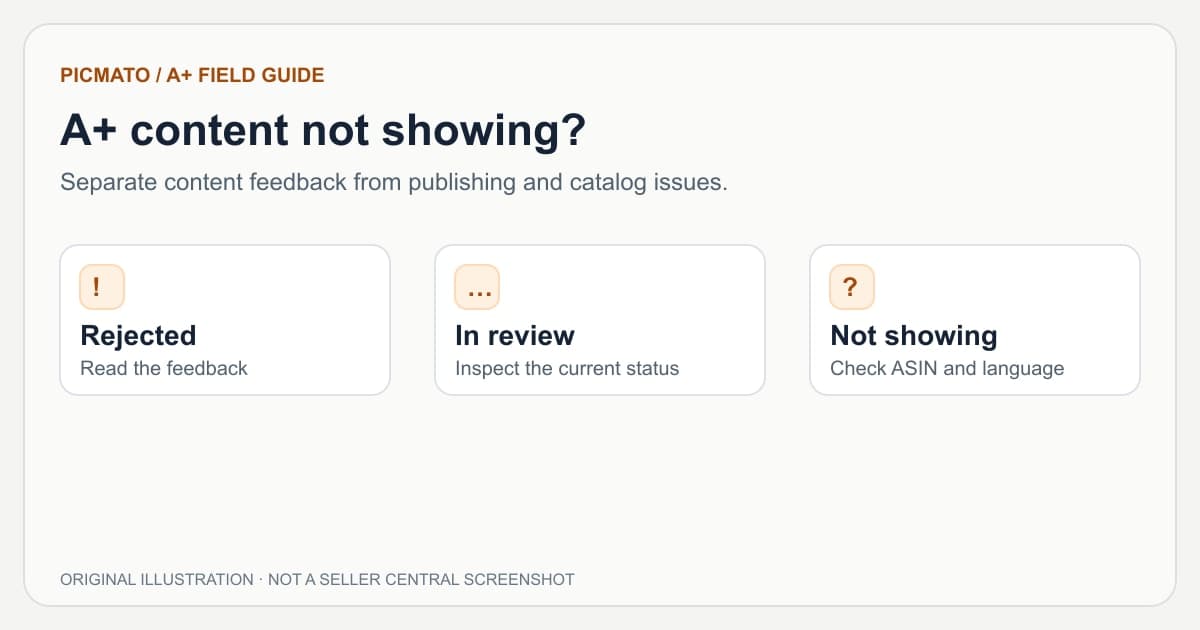
Original diagnostic illustration. These are troubleshooting categories, not a reproduction of Amazon's interface.
If Amazon A+ content is rejected or not showing, check its project status and the status of each applied ASIN first. A rejection needs a response to Amazon's feedback. Pending review needs a status check. Approved content that is missing may involve ASIN assignment, language, brand mapping, or a retail vendor contribution rather than an image-design problem.
This guide uses Amazon staff's public troubleshooting article, checked on 15 November 2026. Its timing guidance is not a service guarantee. Your current Seller Central feedback and help documentation take precedence for the particular account, marketplace, and content project.
Which A+ content state are you troubleshooting?#
Open the content project and inspect its applied ASINs. Record the exact status, any error text, the marketplace and language, and when you last submitted or changed it. A project-level approval is not enough if the intended ASIN still has an error or was never assigned.
Use the table to choose an investigation path. Do not spend time regenerating images until the evidence points to an asset or content problem. A correct image cannot fix a brand-association issue or a project applied to the wrong child ASIN.
| Symptom | First check | Next action |
|---|---|---|
| Rejected | The specific moderation feedback | Correct the identified wording, image, or formatting issue before resubmitting. |
| In review | Submission time and current status | Check the guidance shown in Seller Central; do not assume an immediate publishing failure. |
| ASIN ineligible or unrecognized | Brand association, account access, and vendor contribution | Resolve catalog or access issues through the appropriate Amazon support channel. |
| Approved but absent | Per-ASIN publishing state and viewing language | Confirm assignment and language before investigating a publishing issue. |
| Visible on one variation only | The ASIN the shopper actually lands on | Review assignment across the intended variation family. |
| Visible but cropped or hard to read | Module fields and device previews | Correct the asset size or composition, then preview again. |
References: Amazon staff: A+ Content not showing, common reasons and troubleshooting
What should you change after a rejection?#
Start with the feedback Amazon provides. Note which image or text field it identifies and the rule it references. Then inspect the exact uploaded asset, including words baked into the picture and its image description. A corrected design in your workspace does not help if an older file remains in the content project.
Amazon's public design guide includes content restrictions and a review step. Check that guidance and the current policy linked from your rejection. Remove or substantiate the flagged statement, fix the formatting or image issue, and inspect both previews before sending the revision. Do not replace a prohibited phrase with a near-synonym that makes the same claim.
- Match feedback to the actual uploaded file and text field.
- Check product claims, image descriptions, and any embedded text.
- Verify the correct revision is present in the content project.
- Document the change so the next reviewer can see what was corrected.
References: Amazon: How to create A+ Content, with design tips and examples
Why can an approved A+ project still be missing?#
Check whether the individual ASIN is published, whether you are viewing the matching language, and whether the content is attached to the product variation currently displayed. These are separate checks. A shopper can land on a different child ASIN from the one you used while testing.
Amazon staff also identify retail vendor contributions as a possible reason seller content does not display. If a vendor already contributes the A+ content, redesigning the seller assets will not resolve that priority issue. Ask Seller Support to investigate the contribution when appropriate rather than repeatedly resubmitting new artwork.
References: Amazon staff: A+ Content not showing, common reasons and troubleshooting
How do brand mapping and variations affect visibility?#
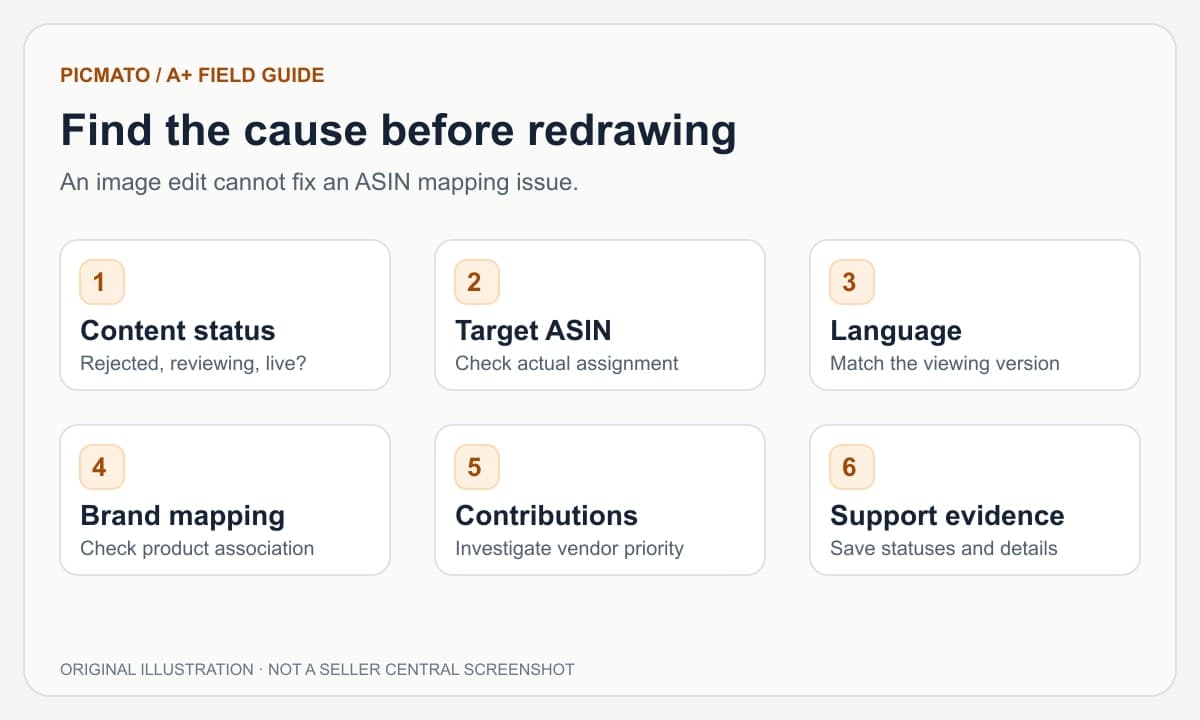
For an unrecognized branded ASIN, compare the catalog brand information with the brand you are authorized to represent. Check the exact product and account role involved. Amazon's staff article recommends verifying the listing's brand information and escalating unresolved brand-association issues to Brand Registry support.
For a variation family, inspect the ASIN list in the A+ project rather than assuming a parent assignment reached every intended child. Reuse content only where the depicted facts are true. A panel that names one capacity, color, or pack quantity may be inaccurate for another child even when the brand and general product family match.
References: Amazon staff: A+ Content not showing, common reasons and troubleshooting
How long should you wait before investigating?#
Use the current timeline displayed by Seller Central for your submission. The public Amazon staff article discusses a review period followed by a separate publishing period, and notes that busy periods can take longer. This distinction is more useful than treating every approved project as instantly live.
If you are outside the stated window, collect the project and ASIN details before contacting support. Amazon staff describe resubmission as an option for some stuck-review or publishing cases. Treat that as case-specific troubleshooting advice, not a reason to keep changing or resubmitting a project that is still within its normal review window.
References: Amazon staff: A+ Content not showing, common reasons and troubleshooting
What evidence should you send to support?#
A useful support request identifies the affected content and the exact discrepancy. Instead of saying 'my A+ is broken,' explain which project is approved, which ASIN is missing it, and what you see when viewing that ASIN in the correct marketplace and language.
- Content project name and identifier.
- Affected ASINs, including the relevant parent and children.
- Marketplace, viewing language, and page URL.
- Project status and individual ASIN status.
- Submission or approval time and the last revision you made.
- Screenshots of the feedback and the detail-page result.
- The brand-association or vendor-contribution issue you have already checked.
When should you return to the creative tool?#
Return to the artwork when moderation feedback or a preview identifies a real content problem: inaccurate facts, unreadable text, wrong crops, or a bad module cut. In Picmato, revise the affected section, inspect the rendered result, and bring mobile back into agreement with desktop before exporting replacement files.
An export panel can help you inspect file properties, but it cannot determine your Amazon account eligibility or guarantee moderation approval. Keep the creative fix separate from the catalog or publishing issue, and verify the final upload rather than assuming a successful download means the content is live.
Amazon guidance is linked beside relevant sections and in the references below. Practical design advice and illustrative examples are identified separately. Seller Central requirements and account access can change; review your current module editor before uploading.
Edited by Picmato.
Content reviewed: Nov 15, 2026
Frequently asked questions
Why is my A+ content approved but not visible?
Approval and per-ASIN publishing are separate checks. Confirm that the content is assigned to the ASIN you are viewing and that the viewing language matches the submitted language. Amazon staff also identify variation assignment, brand association, and existing retail vendor content as possible causes. Inspect those details before recreating images or assuming the project needs another design.
Will regenerating my A+ images fix an ineligible ASIN?
An image redraw does not fix an account-access or catalog-association problem. Read the ASIN error, check brand information and your access, and investigate any retail vendor contribution. Contact the relevant Amazon support channel if the mapping remains wrong. Regenerate creative assets when the feedback actually concerns their content, format, or readability.
Does a successful Picmato export mean Amazon will approve the content?
No. A successful export means you have downloaded files to review and upload. Amazon separately evaluates content and account access, and the module editor has its own requirements. Check the product facts, embedded copy, image descriptions, dimensions, and final device previews before submission. Continue monitoring the project and ASIN publishing statuses after submitting.
Sources & Reference Documentation
Recommended Playbooks & Market Guides
Platform policies, image compliance documentation, and conversion frameworks.
Amazon A+ Content and Brand Story: A Practical Guide
Start here for the differences between Basic A+, Premium A+, and Brand Story, then follow the creation, planning, sizing, mobile, and troubleshooting guides.
How to Create Amazon A+ Content with Picmato
A practical walkthrough from an Amazon product and a module plan to reviewed desktop and mobile images, with a checklist for Seller Central upload.
Amazon A+ Content Image Sizes and Best Practices
A+ image dimensions depend on the selected module. Compare Basic and Premium formats, check Picmato's exported file sizes, and avoid stretching the wrong asset into a slot.