Mobile-First Amazon Listing Images: Designing Infographics That Sell on Small Screens
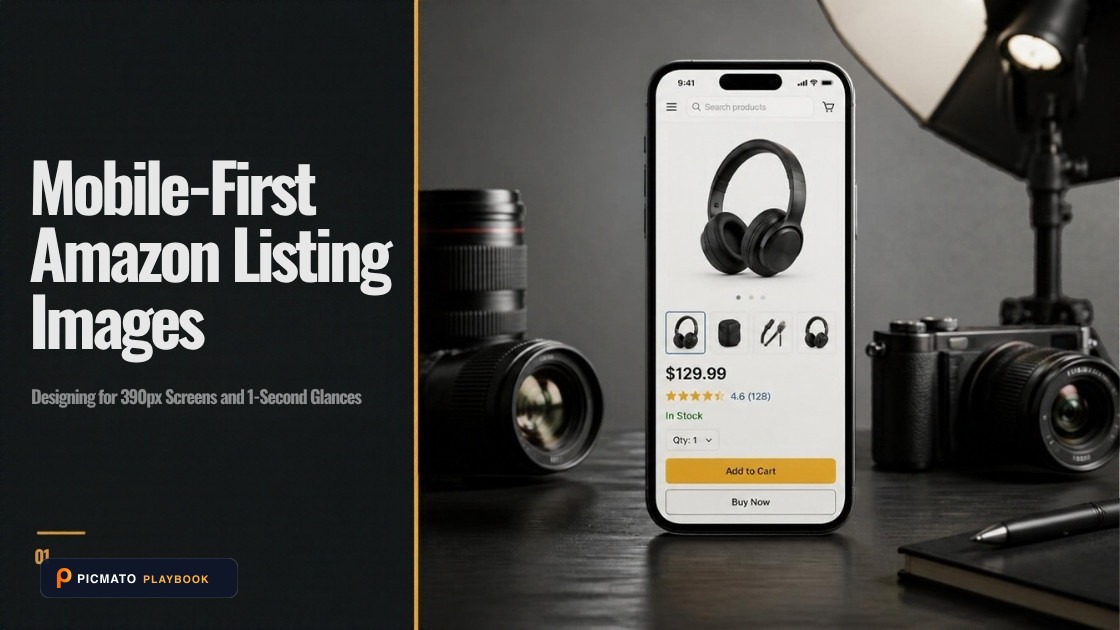
Design listing infographics for mobile viewports to ensure callouts remain readable without manual zoom.
More than 70% of e-commerce transactions on Amazon take place on mobile devices. When sellers design product infographics on wide 27-inch desktop monitors, they frequently create crowded layouts with small fonts that collapse into unreadable noise on a 6-inch smartphone screen.
Optimizing for mobile is not simply downscaling your desktop assets. It requires intentional visual hierarchy, strict typography limits, high micro-contrast, and respect for mobile app interface overlays. Here is how to build mobile-first listing images that sell.
Create listing images from your product photos
Paste your Amazon, Flipkart, Walmart, or Meesho product link or upload phone shots. Picmato recommends listing image templates tailored to your product. Review the plan and choose which images to generate; a nine-image plan does not guarantee nine finished images or nine visible gallery slots. AI renderers do not guarantee an exact RGB value, so check with a color picker before uploading.
Why desktop-first listing graphics fail on mobile devices
On desktop displays, shoppers have ample screen real estate and hover-to-zoom capabilities. On mobile apps, the detail image appears in a constrained square or 4:3 container roughly 360 to 420 pixels wide.
When a seller places 50 words of descriptive text, thin arrow callouts, and tiny feature icons into a frame, mobile shoppers swipe past without reading. If a customer cannot grasp the core value within 2 seconds of swiping, the infographic fails its primary job.
The 3-second mobile swipe test
Mobile browsing is continuous, tactile, and fast. Shoppers flick through the image gallery horizontally before deciding whether to scroll down to read the bullet points.
Conduct a 3-second swipe test: view your exported image on a phone at arm's length. Can you immediately identify the product, read the primary benefit headline, and understand what makes the item unique? If you have to bring the phone closer or pinch-to-zoom, simplify the composition.
Typography scaling: minimum font sizes for 2000px square masters
Our production recommendation is working with a sharp 2,000-pixel square master. To keep text legible when compressed down to mobile screen resolutions, adhere to strict typography proportions.
Limit text to a single primary headline and two or three supporting callouts per image. Avoid paragraph blocks and keep total word count under 15 words per slide.
| Text Element | Recommended Size (on 2000px canvas) | Mobile Legibility Rule |
|---|---|---|
| Primary Headline | 72px to 96px Bold | Must be instantly readable in standard mobile carousel view without zoom |
| Feature Subheading | 44px to 54px Semibold | Clear secondary anchor for feature or material callout |
| Measurement / Unit Label | 36px to 44px Medium | Use clear numeric values and standard abbreviations (e.g., cm, in, kg) |
| Fine Print / Disclaimers | Do not use on mobile infographics | Keep complex technical caveats in listing text, not in compressed images |
Mobile app interface safe zones
Amazon's mobile application renders dynamic interface elements over the listing gallery: pagination indicators at the bottom, back and share icons at the top corners, and floating badges (such as Climate Pledge Friendly or Prime tags).
Maintain a safe zone margin of at least 8% to 10% on all edges of your canvas. Keep critical callout text, logos, and product focal points away from the extreme top corners and bottom strip to avoid visual collision.
Micro-contrast and negative space in mobile search thumbnails
In mobile search feeds, your main image displays as a small thumbnail in a two-column grid alongside competitors. Background clutter and low contrast cause products to blend in.
Maximize the product's frame fill according to Amazon's 85% rule, leaving clean negative space around the silhouette. Use crisp edge definition and accurate studio lighting so the product stands out clearly against the white background on small mobile screens.
Mobile-first preparation checklist
Follow this mobile verification sequence before publishing new gallery assets.
- Preview every exported master on a physical smartphone screen.
- Ensure total text does not exceed 15 words per infographic frame.
- Check that font sizes are legible at standard viewing distance without zoom.
- Keep essential copy clear of the 10% outer interface safe margins.
- Verify that color contrast ratios meet accessibility standards for bright outdoor mobile viewing.
Where can Picmato help, and what must you still verify?
Picmato recommends listing image templates tailored to your product. A nine-image plan describes the planned main image and eight further image purposes based on your listing context; it does not promise nine finished images or nine visible Amazon gallery slots. Review the available plan and choose which images to generate.
The main-image brief is directed to a plain white studio background. AI renderers do not guarantee an exact RGB value; inspect the exported file with a color picker before uploading. Check the product shape, sold quantity, dimensions, every rendered word and any depicted accessories against your own evidence.
Use original packaging photographs for label details, identifiers, warnings and authorized marks. Picmato does not check marketplace or legal compliance and does not verify a translation. This guide does not establish successful URL imports from every Amazon country domain. Use your own product photos when an import is unavailable.
Frequently asked questions
What is the maximum amount of text an Amazon mobile infographic should contain?
Aim for fewer than 15 to 20 total words per frame. Structure the slide with a punchy 3 to 5 word headline and two concise callouts. Excess copy becomes unreadable on mobile screens and discourages shoppers from swiping through the rest of your gallery.
Why does Amazon mobile show fewer gallery images at first glance?
The Amazon mobile app emphasizes immediate swiping and vertical scrolling. Shoppers often see only the first 2 or 3 images before scrolling to the buy box or product details, making your first two secondary images critical for conveying your core value proposition.
Does Amazon compress mobile images differently than desktop images?
Yes. Amazon automatically generates responsive WebP and JPEG derivatives tailored to device viewport and network bandwidth. Fine lines and low-contrast text often degrade during mobile compression, reinforcing the need for bold typography and strong contrast.