Meesho Catalog Rejected: The Image QC Errors and How to Fix Each One
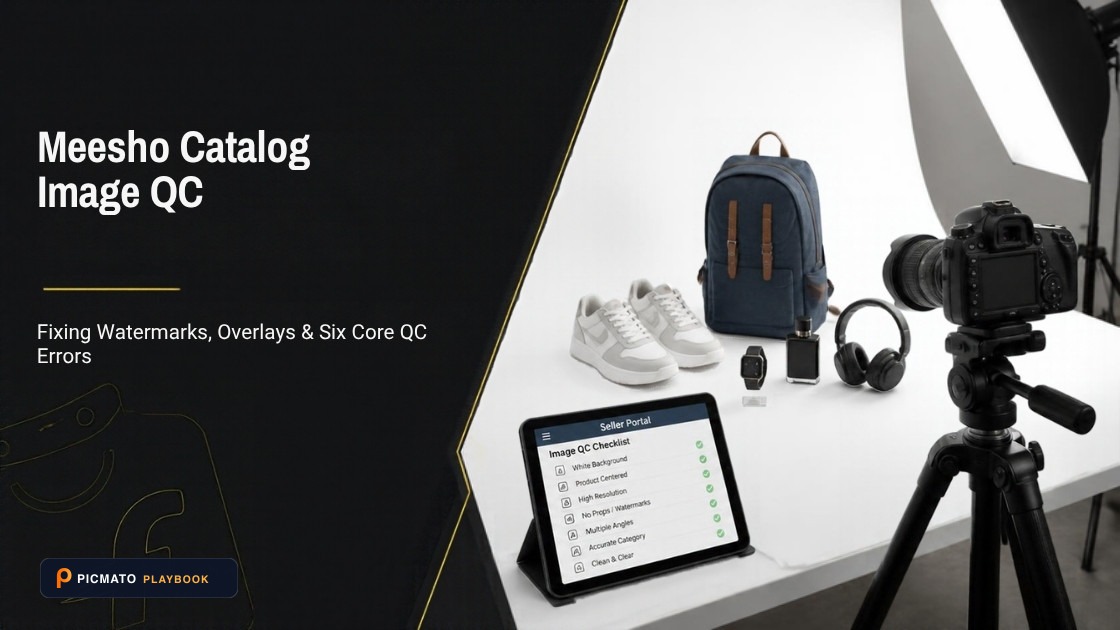
Resolve blurred photos, phone number overlays, and incorrect crop angles to pass Meesho QC immediately.
Meesho names six catalog QC error types on its Learning Hub. They are Wrong Category Error, Duplicate SKU ID and Product ID Error, SKU ID error, Image Link Error, Product Description Error and Image Upload Error. For a bulk catalog, download the error file from the Supplier Panel. Read the Error Status and Error Message columns in both the Error Tab and the Fill-this Tab. Correct the original Excel, then upload the new file from the QC Error page. Meesho does not publish the literal error strings. Its only published timing figure is that a catalog goes live 72 hours after upload.
Meesho's silence about the specifications is why this page reads differently from most. Its how-it-works page says the detailed image guidelines are provided inside the Supplier Panel. So the pixel sizes, file size caps and background colours you find online come from seller guides that cite nothing. Below is the error taxonomy Meesho publishes, what each type points at, the fix for each one, and a clear account of what Meesho leaves blank.
Create listing images from your product photos
Paste your Amazon, Flipkart, Walmart, or Meesho product link or upload phone shots. Picmato recommends listing image templates tailored to your product. Review the plan and choose which images to generate; a nine-image plan does not guarantee nine finished images or nine visible gallery slots. AI renderers do not guarantee an exact RGB value, so check with a color picker before uploading.
Where the error file lives, and how to read it#
The rejection tells you a catalog failed. The error file tells you why. Meesho's QC lesson is specific about where it lives: "For a Bulk Catalog, you will have to download the error file on the Supplier Panel. Also, keep the original excel file handy while correcting the errors." The errors sit in two places inside that file, "in the 'Error Tab' and 'Fill-this Tab' section, listed in the Error Status and Error Message Column". Read both tabs. Sellers routinely fix the Error Tab, re-upload, and fail again on a blank required cell flagged in Fill-this.
The correction loop is a file swap. You edit the original Excel, save it, return to the QC Error page and click "upload new file". The catalog goes live once it passes. There is no appeal step and no ticket to raise. Single uploads work the same way without the download, handled directly in the Catalog Upload section of the admin panel. So keep the source file you uploaded. If you deleted it, you are rebuilding the sheet before you can fix anything.
The six error types Meesho names, and what each one is pointing at#
Meesho lists six types on that lesson page. Those are category labels, not the literal text in the Error Message column. Meesho does not publish those strings, and no seller guide or integrator help centre we could find publishes them either. The walkthrough is delivered as a video on the lesson page: "Watch the video to follow this process step-by-step."
Meesho also hedges its own list, saying a failed status "may happen for any of these or other reasons which we will cover in-depth in the video". Six is the published taxonomy, not a guarantee of the full set. In the table below, the first column quotes Meesho's labels. The second and third columns are our reading and our recommended action. We have not invented plausible-looking strings such as "invalid image URL", because no source publishes them.
| What Meesho calls it | What it is pointing at (our reading) | The fix |
|---|---|---|
| Wrong Category Error | The category on the row does not match the product, or the template belongs to another category | Download the correct category template and move the SKU onto it |
| Duplicate SKU ID and Product ID Error | The same SKU ID or Product ID appears twice here, or repeats one already live | Make every SKU ID unique across the whole account, then re-upload |
| SKU ID error | The SKU ID cell is blank, malformed, or inconsistent with the other rows | Fill every SKU ID cell and keep one naming format for the file |
| Image Link Error | The URL in the image column is the problem, and the picture behind it may be fine | Regenerate the link in Meesho's Images Bulk Upload tool and paste it into the template column |
| Product Description Error | A text field is empty, too short, or carries content the category rules disallow | Fill every mandatory text column and strip contact details, pricing and unsupported claims |
| Image Upload Error | The file itself fails a criterion: format, colour space, watermark, prop, crop or clarity | Re-export your own file as JPEG in RGB, shoot or re-source a primary image with no text or watermark on it, and show the full product |
Image Link Error and Image Upload Error are not the same failure#
An Image Link Error is about the URL you pasted. Meesho's published instruction is to make those links with its own tool: "Use our 'Images bulk upload' tool to create image links to your listings. Simply select the images, upload, & copy-paste the generated links." Meesho publishes no list of accepted link formats, so any link you did not generate there is untested.
Google Drive catches first-time sellers. Seller guides widely report that Drive share links fail QC, and none of them cites a Meesho page saying so. The mechanism stands on its own. A share URL shaped like drive.google.com/file/d/.../view returns an HTML viewer page instead of image bytes, so anything fetching it expecting an image receives a web page.
An Image Upload Error points at the file. Meesho's downloadable category templates carry an Image Criteria tab with two hard technical rules: only JPEG images are accepted, and images must be in the RGB colour space. The rest of the tab is qualitative. It rules out graphic, inverted and pixelated images, text and watermarks in primary images, blur and clutter. Price and brand logos, stretched products and partial product shots are out too. Those criteria travel with the template you download for your own category, so read the tab in your own file.
What Meesho publishes about images, and what it leaves blank#
One sentence on Meesho's how-it-works page explains why this topic is such a mess: "The detailed image guidelines will be provided in the Meesho Supplier panel." The specifications live behind a login. What is public is qualitative, repeated across every category page with the category name swapped in: "Upload product images in JPEG format without any logo or watermark. Do not add any partial product images or images of products with any prop."
No Meesho page we opened carries a Last Updated date. The Learning Hub lessons, the category pages and how-it-works all publish without a date stamp, so you cannot tell how current any of it is. The supplier.meesho.com pages block automated readers outright. If a link will not open, the same lesson text is mirrored on Meesho's seller education hub.
There is no public Meesho page stating a pixel dimension, a file size cap, an aspect ratio, a fill percentage or a background colour. Every number circulating for those came from somewhere else. Meesho does publish a related rule that gets confused with aspect ratio: "Product images must not be shrunk, elongated or stretched." That is a distortion rule. It says nothing about whether your image has to be square.
The figures circulating in seller guides for every row marked "Nothing public" disagree with each other, sometimes by a factor of two on the same spec. We are not reproducing them, because not one of those guides cites a Meesho page and we could not verify any of them. The left column is the only column you can act on. For everything else, read the guidelines shown inside your own Supplier Panel for the category you are listing in.
| Image spec | What Meesho publishes |
|---|---|
| Pixel dimensions | Nothing public |
| File size cap | Nothing public |
| Aspect ratio | Nothing public. Only "must not be shrunk, elongated or stretched" |
| Product fill in frame | Nothing public |
| Background colour | Nothing public. Clutter images and props are not accepted |
| File format and colour space | Only JPEG is accepted, in RGB colour space (category template) |
| Images per listing | At least one front image per SKU, more recommended. No maximum found |
Timing: the only figure Meesho publishes is 72 hours#
Meesho's how-it-works page carries one number: "The product catalog gets live post 72 hours from the time of upload." Read it for what it says. That is time to live from upload, and it is neither a QC review window nor a range. The QC errors lesson gives no turnaround figure at all. The tighter 24 to 48 hour windows quoted in seller guides appear on no Meesho page we could find, so do not plan a launch date around them.
Batching is shaped by two other published rules. A catalog holds "a minimum of 1 product and a maximum of 9 products of the same category". Meesho recommends at least 3 to 4 products per catalog, plus 5 to 7 catalogs in the first few days for visibility. A correction means re-uploading the whole file, so a nine-product catalog that fails on one SKU is a bigger file to reopen. Build catalogs at the size you are willing to re-upload.
A working order that does not create new errors#
Make the images first, get the links second. Produce or shoot every image, save the files, upload them through Meesho's Images Bulk Upload tool, then paste the links it returns into the template column. That order matters because the only link the template is known to accept is one Meesho generated. Convert your exports to JPEG in RGB before that upload, since the template criteria accept nothing else. Nothing in this workflow does that conversion for you, ours included.
Picmato fits in at the image stage. You import a Meesho product URL. Product analysis runs first, as a hard gate before anything is generated. The recommender then suggests which shots the product needs, with an editable brief per shot. You download the results as files at 1K, 2K or 4K, and the 2K and 4K sizes sit on the paid Pro and Max plans. A shot can be directed to a plain white studio background. AI renderers do not guarantee an exact RGB value, so check the result with a colour picker.
Three things no image tool in this workflow does for you, ours included. It does not change your file format: generated images come back as PNG, Meesho's template accepts only JPEG in RGB, and that re-save is your step. It cannot host your images or supply feed links, so the upload into Meesho's tool stays your step too. And it cannot pre-check a finished file against Meesho's QC, because that rulebook is not published in full and Picmato has no Meesho pre-check. The error file stays the only thing that tells you what failed.
All dimensions, RGB requirements, and technical guidelines in this playbook are verified directly against official 2026 seller portal specifications (Amazon Seller Central, Walmart Marketplace, Flipkart Seller Hub, and FSSAI standards).
Last reviewed for policy compliance: Sep 30, 2026
Frequently asked questions
Why did my Meesho catalog fail QC when the images look fine?
Meesho separates Image Link Error from Image Upload Error, and the first has nothing to do with picture quality. A link error means the URL in your sheet did not resolve to an image. An upload error points at the file: a format that is not JPEG, a watermark on the primary image, a prop, or a partial product. Read the Error Message column before you re-shoot anything.
Does Meesho accept Google Drive links for bulk catalog upload?
Meesho does not publish a list of accepted link formats, so there is no first-party yes or no. What it does publish is the instruction to create image links with its own Images Bulk Upload tool inside the Supplier Panel and paste those into the template. Seller guides widely report Drive share links failing. A Drive share URL returns a viewer page instead of image bytes, which is why it behaves badly.
How long does Meesho QC take?
The only figure Meesho publishes sits on its how-it-works page: the product catalog gets live 72 hours after upload. That is time to live from upload, not a review window, and Meesho does not express it as a range. The QC errors lesson gives no turnaround figure at all. The 24 to 48 hour windows quoted in seller guides are not published by Meesho anywhere we could find.
What image size does Meesho require for catalog uploads?
Meesho publishes no pixel figure on any page we could open. Its how-it-works page says the detailed image guidelines are provided inside the Supplier Panel. Public sources disagree with each other as a result, and not one of the guides quoting a minimum cites a Meesho page for it. Check the guidelines shown inside your own panel for the category you are listing in.
Does Meesho require a white background on product images?
Not on any page Meesho publishes. The closest published rules are that clutter images are not accepted and that products should be shown without props. Seller guides split on this question, and none of them cites a Meesho page for its answer. A plain, uncluttered background is the safe reading until the guidelines inside your own Supplier Panel tell you otherwise.
Sources & Reference Documentation
- Meesho Supplier Learning Hub, How to Find and Fix QC Errors
- Meesho Seller Education Hub (readable mirror), How to Find and Fix QC Errors
- Meesho Supplier Learning Hub, How to List Your Catalogs Using Bulk Uploads
- Meesho Seller Education Hub (readable mirror), How to use the Supplier Panel
- Meesho Supplier, How it Works (72 hours to live, catalog size, image guidelines deferred to the panel)
- Meesho Supplier, Sell Women's Clothes Online (the qualitative image rule repeated on every category page)
Related on Picmato
Recommended Playbooks & Market Guides
Platform policies, image compliance documentation, and conversion frameworks.
Flipkart Image Guidelines and Cataloging Rules: The Seller's Checklist
Every Flipkart image rule in one place: sizes, backgrounds, overlay bans, and the QC rejection reasons that stall listings. Plus where AI-generated product images actually stand.
How to Create White Background Product Photos with AI
Amazon suppresses listings whose main image background is not exactly RGB (255, 255, 255). Here is how the DIY, Photoshop, and AI routes compare for getting there, and the checklist to run on the finished file before you upload.
Amazon Listing Image Requirements, Explained
Read Amazon.com image-size guidance, distinguish upload and zoom targets, and prepare accurate main images and galleries with clear source limits.