iPhone & HEIC Product Photography: From Phone Camera to Listing Images and Ad Creatives
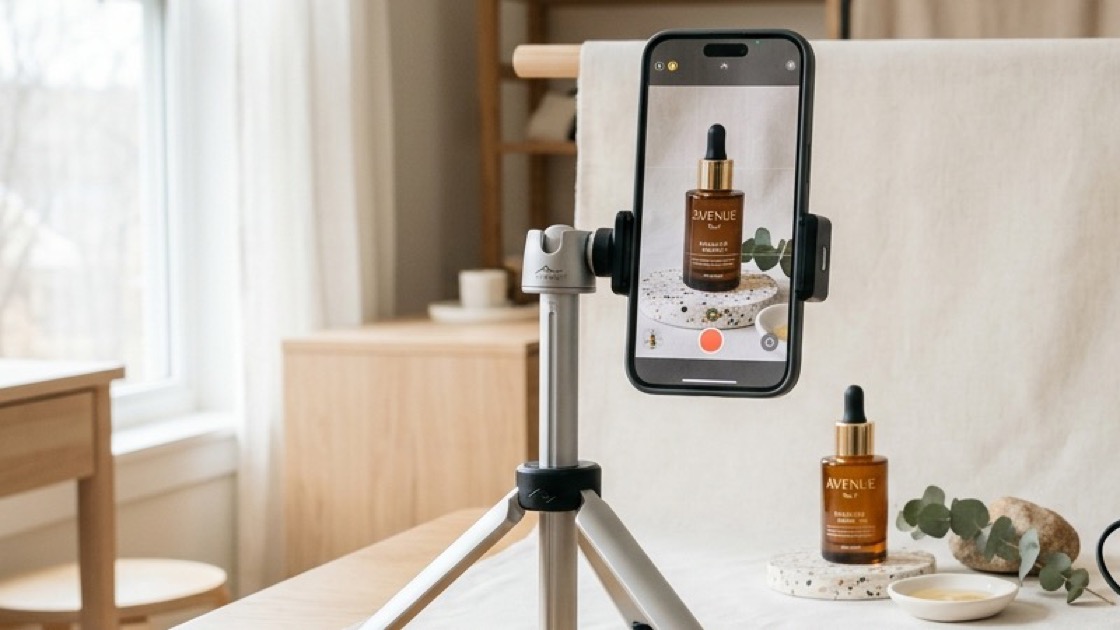
A phone on a tripod, soft window light and a plain backdrop are enough for base product photos.
iPhones save photos as HEIC by default when the camera's format setting is High Efficiency, which it is out of the box on iPhone 7 and later. HEIC is Apple's use of the HEIF image format with HEVC compression, and it stores a photo in less space than a JPEG of similar quality. For a seller shooting product photos, that helps on the phone and causes a small problem at upload time.
Marketplace image specs are written around JPEG and PNG. Amazon's product image requirements list JPEG, TIFF, PNG and GIF, and HEIC is not on that list, so plan to convert an iPhone photo, or to use a tool that converts it for you, before it reaches a listing. This guide covers what HEIC is, how to convert without dulling colours, a low-cost phone setup, and how phone photos become listing images and social ad creatives in Picmato.
Don't build compliant listing images by hand
Paste your Amazon, Flipkart, Walmart, or Meesho product link or upload phone shots. Picmato plans a 9-image set for your product: studio white-ground hero, lifestyle scenes, and feature infographics.
How to turn iPhone product photos into listing images and ad creatives
Shoot clean product photos on an iPhone, upload them as HEIC, and generate a planned listing set and social ad creatives.
Set up beside soft window light
Put a clean table about 3 feet from a window, with the window to one side. Soften the light with a sheer white curtain and stand a white foam board on the shadow side for fill.
Mount the iPhone and tap 2x
Clamp the iPhone to a tabletop tripod and tap 2x rather than pinching to zoom, so straight edges on bottles and boxes stay straight.
Lock focus and exposure
Tap and hold on the product label until AE/AF LOCK appears, then drag the sun icon down a little to keep bright highlights from blowing out.
Shoot the photos the set will draw on
Use the 3-second self-timer. Shoot the front, an angle, a close-up of the label and ingredient panel, and the pack contents laid out.
Upload the HEIC photos to Picmato
Open Picmato in Safari or a desktop browser and upload up to 12 photos as they are. HEIC files are converted when they arrive, then analysed.
Generate and check
Review the planned set, pick the images to generate, and check each one before you upload it. On Starter and up, make social creatives in the aspect ratios you need, one run per format.
What HEIC is and why marketplaces want JPEG or PNG
HEIC is a HEIF image compressed with HEVC (H.265), the same codec iPhones use for video. Apple made it the camera default with iOS 11. You can check or change it in Settings > Camera > Formats: High Efficiency saves HEIC, and Most Compatible saves JPEG.
Marketplaces publish the formats they accept, and those lists centre on JPEG and PNG. Amazon's image requirements page lists JPEG, TIFF, PNG and GIF. Check the current page for each marketplace you sell on, because a file in a format it does not list can be refused at upload.
Colour is the second issue. iPhones capture in the Display P3 colour space, which is wider than the sRGB most web pages assume. A converter that drops the colour profile without converting the colours can leave reds, golds and saturated packaging looking dull or shifted. Convert with a tool that maps the colours to sRGB, then compare the result with the product in your hand.
How Picmato handles HEIC uploads
You can upload HEIC straight from an iPhone. Picmato takes up to 12 photos per product in JPG, PNG, WebP or HEIC and converts HEIC files on its servers when they arrive, so you do not need a converter first. You can also import a listing from its URL instead of uploading photos.
Analysis then reads the photos and the listing, including the text printed on the pack, before anything is generated. New images are generated at 1K, 2K or 4K, depending on your plan. Generation is not a check against any marketplace's rules, so check each finished image against the rules of the marketplace you upload it to.
A phone studio: lighting, framing and stability
You do not need a camera body to get usable base photos. The iPhone 14 Pro and every model from the iPhone 15 on have a 48MP main camera. What decides the result is the light, the lens you pick and a steady phone.
1. Pick a lens, not a pinch. Tap the 1x or 2x button rather than pinching to zoom. On 48MP models, 2x is a crop from the centre of the main sensor and still gives a 12MP photo, while pinching to an in-between value enlarges pixels. For small items such as cosmetics, jewellery and supplement packs, 2x from a little further back keeps straight edges straight, where 1x up close bends them outward.
2. Soft side light. Put the table beside a large window, with the window to one side of the product. Hang a sheer white curtain or tracing paper over the glass to soften direct sun, and stand a sheet of white foam board on the other side to bounce light into the shadows. After dark, two daylight-balanced LED panels (about 5500K) at 45 degrees to the product do the same job.
3. Lock focus and exposure. Tap and hold on the product until AE/AF LOCK appears, then drag the sun icon down a little. Phones tend to brighten a scene, which can blow out glossy highlights and white packaging text; a slightly darker photo keeps that detail.
4. Keep the phone still. A tabletop tripod with a phone clamp and the 3-second self-timer remove the shake that tapping the shutter causes.
From your phone photos to a planned listing set
Picmato plans a 9-image set for each product: the main image, plus eight images the planner names for that product from its listing, your photos and the review themes it holds for it. You choose which planned images to generate and pay credits per image. Nine is the size of the plan, not a promise of nine finished images: an image the planner could not fill is left out, and the picker tells you how many.
The plan works from what your photos and listing show, so give it more than one snapshot. Shoot the front, an angle or two, a close-up of the label and ingredient panel, and the pack contents laid out. Those photos are the evidence the planned images draw on.
If you have saved a brand character, it goes into every image your set plans with a person. Nothing checks the person in a finished image, so review those images before you use them.
Converting HEIC yourself
If you need JPEG or PNG files outside Picmato, for a marketplace upload or for someone else to edit, convert them with the colour handled properly:
• Mac: select the files in Finder, right-click and choose Quick Actions > Convert Image. Pick JPEG or PNG and Actual Size so nothing is downscaled.
• Windows: install HEIF Image Extensions from the Microsoft Store so Windows can open HEIC files. Depending on your setup, the HEVC Video Extensions may also be needed to decode them.
• iPhone: to stop making HEIC files at all, set Settings > Camera > Formats to Most Compatible, and the camera saves JPEG instead.
• Keep full resolution. Do not shrink a photo before you upload it; fine label text and clean edges are what analysis needs to read.
• Check the finished main image. AI renderers do not guarantee an exact RGB value, so check an Amazon main image with a colour picker before you upload it.
Frequently asked questions
What is HEIC, and why does my iPhone save product photos as .heic?
HEIC is Apple's use of the HEIF image format, compressed with HEVC. iPhones save HEIC by default when Settings > Camera > Formats is set to High Efficiency, because the files are smaller than JPEGs of similar quality. Choose Most Compatible to save JPEG instead.
Can I upload HEIC product images directly to Amazon, Flipkart, or Walmart?
Plan on converting first. Marketplace image specs centre on JPEG and PNG, and Amazon's list (JPEG, TIFF, PNG and GIF) does not include HEIC. Convert to JPEG or PNG in sRGB, or upload the HEIC to a tool that converts it for you.
What are the best online resources and guides for creating effective ad creatives using heic format?
Start with the platforms' own pages: Meta's Ads Guide for ad sizes, and Apple's support page on HEIF and HEVC for the format itself. For the workflow, shoot in HEIC, then either convert to JPEG or PNG in sRGB or upload the HEIC to a tool that accepts it. Picmato accepts HEIC uploads and, on Starter and up, makes social creatives in 1:1, 4:5, 16:9 and 9:16.
How do I shoot professional product photos with an iPhone without expensive studio equipment?
Use soft window light from one side (diffused with a sheer white curtain), a white foam board on the other side for fill, and a tabletop tripod. Tap 2x rather than pinching to zoom, and lock focus and exposure with a slight pull-down on brightness to keep highlight detail.
Does Picmato support direct HEIC uploads from an iPhone?
Yes. You can upload up to 12 photos per product in JPG, PNG, WebP or HEIC, from a phone or a computer, and HEIC files are converted when they arrive.
What aspect ratios should I generate for social media ads from my iPhone product shots?
1:1 for square feed placements, 4:5 for portrait feed placements on Instagram and Facebook, 9:16 for full-screen Stories and Reels, and 16:9 for landscape placements such as YouTube. On Starter plans and up, Picmato makes each of these as a separate run.
How do I prevent wide-angle lens distortion when photographing products with an iPhone?
Avoid the 0.5x ultra-wide, step back from the product and tap 2x. Shooting from further away at 2x keeps bottle edges, box sides and cylindrical items straight.
Social ad creatives from the same photos
On Starter plans and up, Picmato makes social creatives in four aspect ratios: 1:1, 4:5, 16:9 and 9:16. Each format is a separate run, so make the ones you will actually place:
• 1:1 (commonly uploaded at 1080 × 1080 px): feed posts and carousel cards.
• 4:5 (1080 × 1350 px): portrait feed placements on Instagram and Facebook, which take more of a phone screen than a square.
• 9:16 (1080 × 1920 px): Stories, Reels and other full-screen vertical placements.
• 16:9 (1920 × 1080 px): landscape placements such as YouTube and desktop.
Recommended sizes and safe zones change, so check each platform's current specs before you launch. Meta keeps its own in the Meta Ads Guide.